A recommended way to do the exercises is to work in TC217.
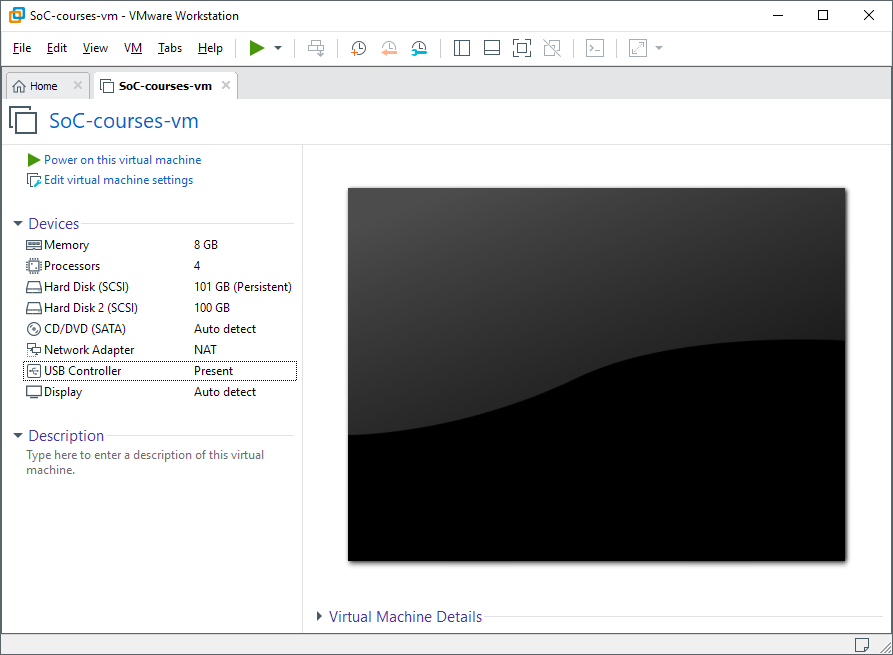
The tools in these exercises are run in a Ubuntu virtual machine. The first task is to configure the VMWare Workstation.
Instructions
- Start the VMWare workstation
- Click Open a Virtual Machine and navigate to
C:\Work\SoC-courses-vm\SoC-courses-vm.vmx
- Power on this virtual machine
- A dialog may appear asking if the machine was moved or copied. Select copied.
- The system should auto login, but the credentials are student / student just in case.
Important: The virtual machine home folder is restored on every boot, so DO NOT SAVE ANY FILES ON THE VIRTUAL HARD DISK!
You can either use Git directly on the virtual machine or use a shared folder on P:\
There's a reminder DO_NOT_SAVE_ANYTHING_HERE.txt, that also contains hints on how to store your Git settings on shared P:\
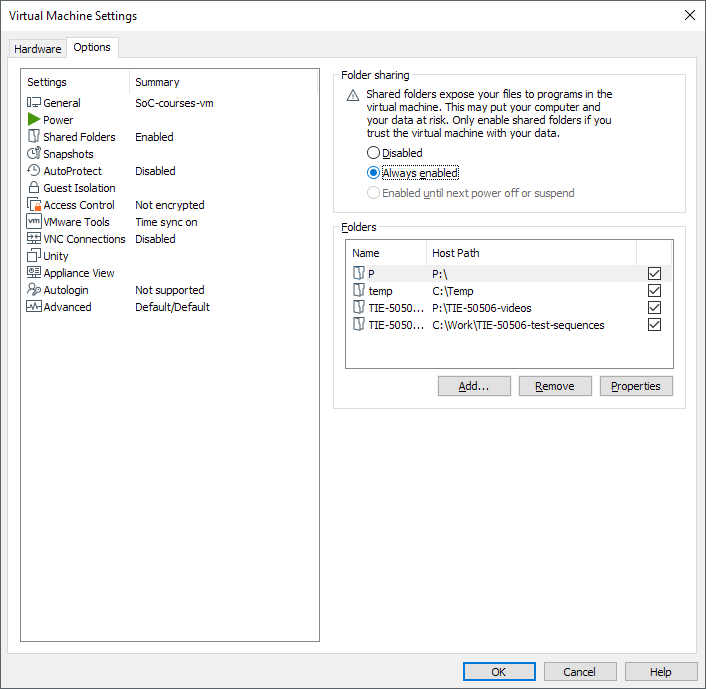
To use P:\ in the virtual machine you have to check that the shared folders are configured correctly.
- Go to VM - Settings... in the menu bar
- Go to the Options tab and click Shared Folders
- Select Always enabled check box
- Make sure the paths are correct
- After starting the virtual machine, P drive should be available in /home/student/shared_p
- If the shared folder does not work, try disabling and re-enabling shared folders in the VM settings
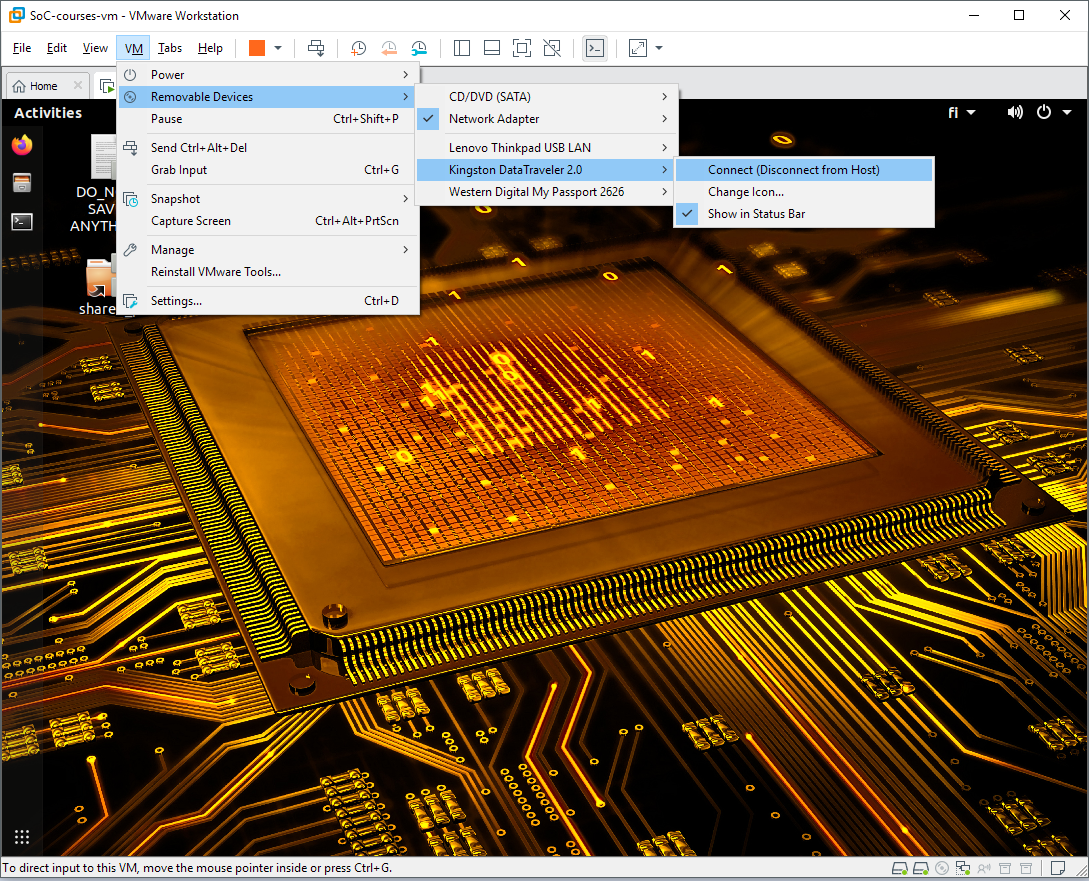
USB sticks can be connected to the virtual machine, if not connected automatically.
- Select your device in VM - Removable Devices
- Make sure that the device is checked. if not, click Connect (Disconnect from Host)
- The device should appear after a while in /media/student/[DISK_LABEL]
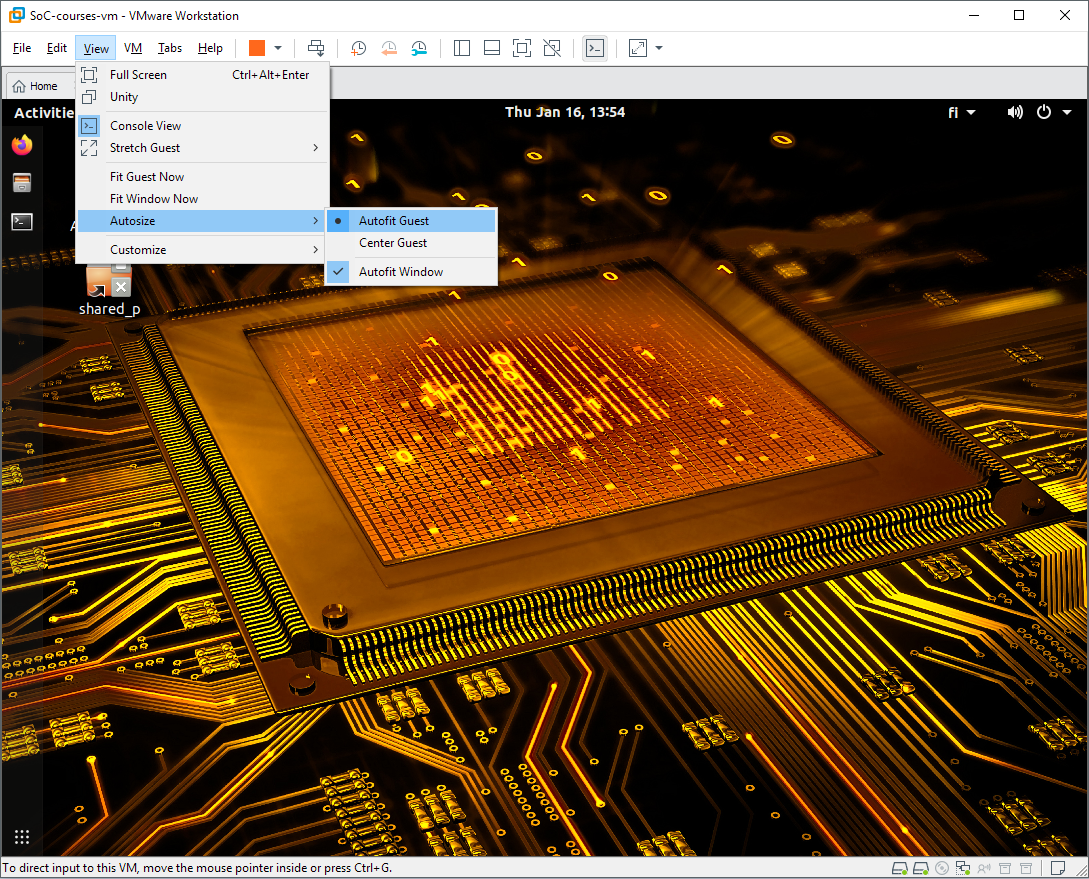
The virtual machine supports dynamic resolution, but it's not the default behaviour in VMWare Workstation.
- To enable it, select View - Autosize and check Autofit Guest
The virtual machine should now be ready to use.
All the EDA software is installed into the /opt folder and accessible in terminal via source scripts taking care of licensing and path variables.
To set the course environment run:
source /opt/soc_paths.sh
- This will set the paths for this session, but additional scripting should source it automatically for new terminals.